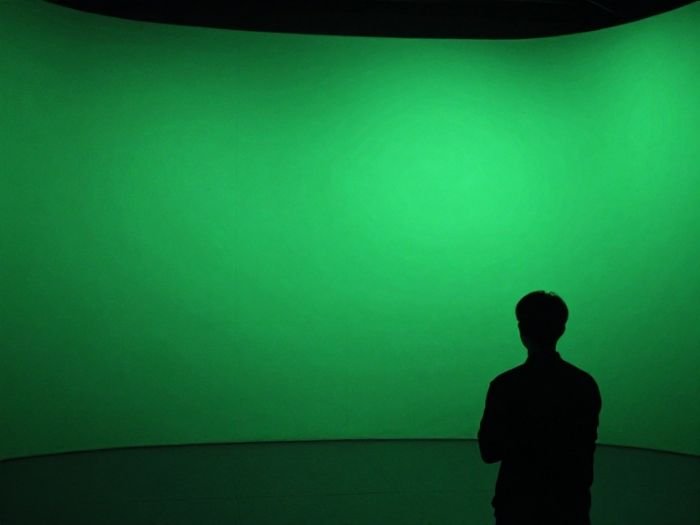
Ever watched a movie scene where the hero stands on a floating city and wondered how they pulled it off? Odds are, a green screen was behind it. The good news is you don’t need a Hollywood budget to use one. With a cheap backdrop, decent lighting, and a free editor, you can create green screen video that looks surprisingly professional.
In this guide, I’ll walk you through how a green screen works, why it’s used, and exactly how to use one from setup to final edit.
How Does a Green Screen Work and Why Is It Green?
A green screen works through a technique called chroma keying. Your editing software picks one specific color (green) and makes it transparent. Whatever you place behind your footage, whether a beach, a studio, or an animated world, shows through in its place.
So why green and not, say, purple? Three reasons:
- Skin tones contain very little green. Green is far from the colors in human skin, so your subject doesn’t accidentally vanish along with the background.
- Digital cameras are most sensitive to green. Camera sensors capture more green detail, which means cleaner edges and less noise.
- It’s bright and easy to light. Green reflects plenty of light, making it simple to light evenly.
Blue screens work too, and they’re sometimes better for subjects wearing green. But for most creators, green is the default for good reason.
Why Green Screen Is Used for Editing
Editors rely on green screens because they give total control over the final image. Instead of traveling to a location or building an expensive set, you shoot your subject once and swap the green screen background whenever you want.
It’s used in:
- Film and TV productions
- YouTube videos and tutorials
- News and weather broadcasts
- Online courses and webinars
- Product demos and ads
It also opens the door to green screen VFX, like explosions, magic effects, flying objects, and fantasy environments that would be impossible or unsafe to film for real.
The Benefits of a Green Screen
If you’re still wondering whether it’s worth the effort, here’s what you gain:
- Creative freedom. Put your subject anywhere, from outer space to your brand’s logo wall.
- Saves money. No travel, no location permits, no set construction.
- Saves time. Reshoots are rare because you can fix or change the background later.
- Consistency. Your videos can share the same polished look, which helps with branding.
- Safety. Dangerous or complicated scenes can be created digitally.
- Beginner-friendly. Modern editors make chroma keying nearly one-click.
What You Need to Get Started
You don’t need much:
- A green screen. Choose a fabric backdrop, a pop-up panel, or even a painted wall. Matte, wrinkle-free material works best.
- A camera. A modern smartphone shoots great green screen video.
- Two or more lights. One for the subject, one (or two) for the backdrop.
- A tripod. A steady shot makes keying much easier.
- Editing software. CapCut, DaVinci Resolve, Premiere Pro, Final Cut Pro, and iMovie all support chroma keying.
How to Use a Green Screen, Step by Step
1. Set Up Your Backdrop Smoothly
Hang or stretch the screen so it’s tight and flat. Wrinkles create shadows, and shadows create uneven green that’s hard to remove. Steam or iron the fabric if needed.
2. Keep Your Distance
Place your subject at least 3 to 6 feet in front of the screen. This prevents “green spill,” the green glow that bounces onto your subject’s hair, shoulders, and clothes.
3. Light the Screen and Subject Separately
This is where most beginners go wrong. Light the backdrop evenly so there are no hot spots or dark patches. Then light your subject independently with a soft key light and, if you can, a back light to separate them from the screen.
4. Choose Your Clothing Carefully
Avoid green clothes, unless you want to become see-through. Also watch out for shiny jewelry, glasses, and glossy fabrics that reflect green.
5. Shoot with the Right Settings
Use the highest resolution your camera allows, lock your exposure and focus, and keep your shutter speed sensible to avoid motion blur around the edges. Good source footage makes everything after it easier.
6. Key Out the Green in Editing
Import your footage, drop it above your new background on the timeline, and apply the chroma key (sometimes called “Ultra Key” or “Green Screen” effect). Select the green with the eyedropper, then fine-tune the tolerance, edge feathering, and spill suppression until the edges look natural.
7. Add Your Background and Finish Up
Place your chosen green screen background on the layer beneath. Match the color tone, brightness, and shadows so your subject feels like they belong in the scene. Then add sound, music, and effects.
Common Green Screen Mistakes to Avoid
- Wrinkled or unevenly lit backdrops
- Standing too close to the screen
- Low-quality or heavily compressed footage
- Ignoring the background’s lighting direction
- Over-keying, which leaves fuzzy or “chewed” edges
Fixing these before you hit record saves hours of frustration later.
Taking Green Screen VFX Further
Once you’re comfortable with the basics, you can experiment with green screen VFX like fire, smoke, lightning, and animated overlays, or layer multiple clips for more cinematic scenes. Creators are also pairing chroma key with automation to speed up production. If you want your clips to actually get seen, check out our guide on How to Create Viral Content Using AI Tools. It shows how AI can help with scripts, captions, editing, and ideas, so your polished green screen videos reach a wider audience.
Final Thoughts
Learning how to use a green screen is one of the fastest ways to level up your videos. Remember the essentials: a smooth backdrop, even lighting, space between you and the screen, and a careful chroma key in editing. Get those right, and you can drop yourself into any world you can imagine.
Grab a backdrop, set up your lights, and give it a try. Your first take won’t be perfect, but by your third or fourth, you’ll wonder why you waited so long.
FAQs
Can I use a green screen without special software?
Yes. Many free editors, including CapCut and DaVinci Resolve, include chroma key tools.
What’s the best green screen color for video?
Chroma key green is the standard, but use blue if your subject is wearing green.
Can I use a green screen at home?
Absolutely. A fabric backdrop and two lamps are enough to start.